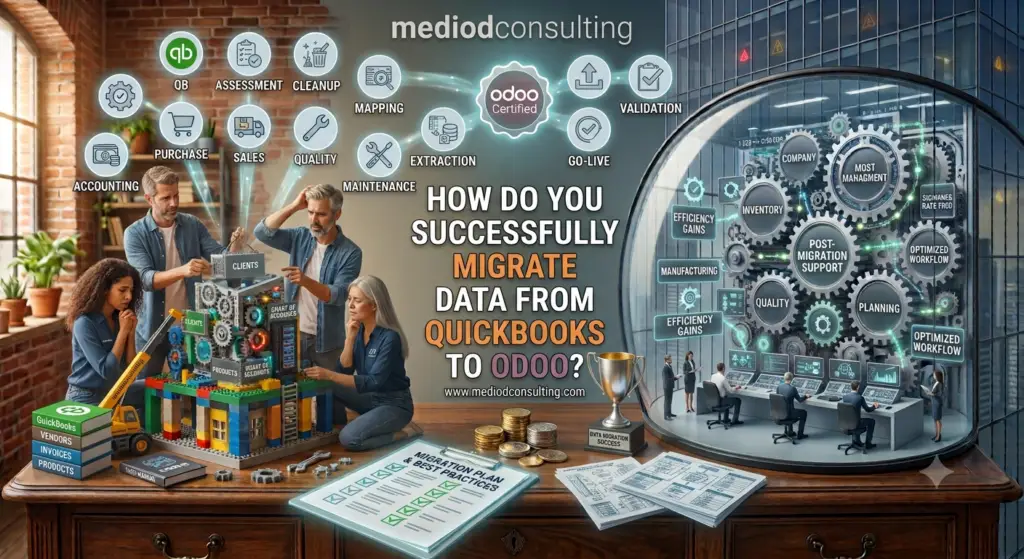
Moving from QuickBooks to Odoo can give a growing business a more integrated ERP system for accounting, sales, purchasing, inventory, CRM, manufacturing, and operations.
However, QuickBooks to Odoo migration is not simply a matter of exporting data from QuickBooks and importing a CSV file into Odoo.
A successful migration requires careful planning, data cleaning, accounting mapping, opening balance validation, historical data decisions, and testing.
If the migration is poorly planned, businesses can end up with duplicate contacts, incorrect account mappings, missing transactions, incorrect opening balances, or financial reports that do not reconcile with QuickBooks.
In this guide, we explain how to migrate from QuickBooks to Odoo successfully, what data can be migrated, how to handle accounting information, and the most common mistakes to avoid.
Why Move From QuickBooks to Odoo?
QuickBooks is widely used for accounting, particularly by small and growing businesses.
However, businesses often reach a point where accounting is only one part of what they need from their business software.
For example, a growing company may need:
- CRM
- Sales
- Purchasing
- Inventory
- Manufacturing
- Project management
- Accounting
- eCommerce
- HR
- Payroll
- Automated workflows
- Business reporting
Odoo provides these applications within an integrated ERP platform.
Instead of maintaining separate systems for different departments, businesses can connect their operations through Odoo.
For example:
CRM → Sales → Purchase → Inventory → Accounting
This can reduce duplicate data entry and provide management with a more complete view of the business.
What Is a QuickBooks to Odoo Migration?
A QuickBooks to Odoo migration involves transferring relevant business and accounting information from QuickBooks into Odoo.
Depending on the business requirements, migration may include:
- Customers
- Vendors
- Products
- Chart of accounts
- Taxes
- Contacts
- Customer invoices
- Vendor bills
- Payments
- Credit notes
- Journal entries
- Bank transactions
- Accounting balances
- Historical transactions
- Opening balances
However, not every business needs to migrate everything.
A migration should be designed around the company’s reporting, legal, operational, and historical data requirements.
QuickBooks Online vs QuickBooks Desktop Migration
The migration approach can differ depending on which version of QuickBooks you currently use.
QuickBooks Online to Odoo
QuickBooks Online to Odoo migration generally involves exporting the required information from QuickBooks Online and transforming it into a format that can be imported into Odoo.
Typical data can include:
- Customers
- Vendors
- Products and services
- Accounts
- Invoices
- Bills
- Payments
- Journal entries
The exact export options depend on the QuickBooks configuration and the data required for Odoo.
QuickBooks Desktop to Odoo
A QuickBooks Desktop to Odoo migration may require additional preparation because data is stored locally and the available export/import options differ from QuickBooks Online.
Before migration, determine:
- QuickBooks version
- Company file structure
- Accounting period
- Data volume
- Required historical data
- Existing integrations
- Reporting requirements
The migration strategy should then be designed accordingly.
Step 1: Define Your QuickBooks to Odoo Migration Scope
Before exporting anything, decide what needs to move.
This is one of the most important migration decisions.
You may have ten years of QuickBooks data, but you may not need to migrate every transaction into Odoo.
There are several possible approaches.
Option 1: Full Historical Migration
Migrate as much historical accounting information as practical.
This can provide continuity but requires more preparation and validation.
Option 2: Opening Balances + Selected History
Migrate current master data and opening balances while keeping older transactions in QuickBooks for historical reference.
This is often simpler.
Option 3: Hybrid Migration
Migrate important historical information while keeping older detailed transactions in the legacy system.
The correct approach depends on:
- Legal requirements
- Reporting requirements
- Audit requirements
- Business needs
- Data quality
- Migration budget
Do not decide the migration scope based solely on what can technically be imported.
Step 2: Analyze Your QuickBooks Data
Before importing data into Odoo, perform a data assessment.
Review:
- Customers
- Vendors
- Products
- Accounts
- Taxes
- Invoices
- Bills
- Payments
- Credit notes
- Journal entries
- Bank accounts
- Outstanding receivables
- Outstanding payables
Look for:
- Duplicate records
- Inactive customers
- Incorrect accounts
- Missing information
- Old products
- Incorrect tax mappings
- Duplicate transactions
- Inconsistent naming
Migration is an excellent opportunity to clean your accounting data.
Step 3: Map QuickBooks Accounts to Odoo
One of the most important parts of an accounting migration is chart of accounts mapping.
QuickBooks and Odoo may use different account structures.
For example:
| QuickBooks | Odoo |
|---|---|
| Checking Account | Bank Account |
| Accounts Receivable | Receivable |
| Accounts Payable | Payable |
| Sales Income | Sales Revenue |
| Office Expense | Operating Expense |
| Cost of Goods Sold | COGS |
| Inventory Asset | Inventory |
| Tax Payable | Tax Liability |
The actual mapping depends on the company’s accounting structure.
Do not import the QuickBooks chart of accounts blindly.
Instead, review the existing structure and determine how it should work in Odoo.
Step 4: Configure Odoo Accounting Before Migration
Odoo should be configured before importing financial transactions.
This may include:
- Company information
- Fiscal localization
- Chart of accounts
- Journals
- Taxes
- Fiscal positions
- Payment methods
- Bank accounts
- Currency
- Accounting periods
For US businesses, this may include requirements related to:
- Sales tax
- Multiple states
- Banking
- Payment providers
For businesses in Germany, the implementation may require attention to:
- German accounting localization
- VAT
- DATEV
- SEPA
- Tax configuration
- Chart of accounts
The migration should be based on the target Odoo accounting structure.
Step 5: Clean Customer and Vendor Data
Customer and vendor data often contains duplicates.
For example:
ABC Manufacturing LLC
and
ABC Manufacturing
may be the same company.
Other common problems include:
- Duplicate contacts
- Missing addresses
- Incorrect email addresses
- Inconsistent company names
- Missing tax IDs
- Old inactive customers
- Incorrect payment terms
Before importing contacts into Odoo:
Extract → Clean → Deduplicate → Standardize → Validate
This produces a cleaner Odoo database from day one.
Step 6: Migrate Products Carefully
Products require more attention when moving from QuickBooks to Odoo because Odoo can manage considerably more operational information.
QuickBooks may contain a simple list of products or services.
Odoo may require additional information such as:
- Product type
- Product category
- Sales price
- Cost
- Unit of measure
- Purchase unit
- Taxes
- Inventory settings
- Routes
- Vendors
- Reordering rules
If you are also implementing Odoo Inventory or Manufacturing, product migration becomes even more important.
A simple QuickBooks item list may need to be transformed into a proper Odoo product master.
Step 7: Decide How to Handle Historical Transactions
This is one of the biggest decisions in a QuickBooks to Odoo migration.
You can potentially migrate:
- Invoices
- Bills
- Payments
- Credit notes
- Journal entries
- Bank transactions
But historical accounting migration can be complex.
Ask:
Do we need every historical transaction inside Odoo?
If yes, determine:
- How many years?
- Which companies?
- Which journals?
- Which transactions?
- Which attachments?
- Which reconciliation information?
If the business only needs current balances, migrating every historical transaction may create unnecessary complexity.
Step 8: Handle Accounts Receivable and Accounts Payable
Outstanding customer and vendor balances require special attention.
Suppose QuickBooks shows:
Customer A — $25,000 outstanding
and:
Vendor B — $8,000 outstanding
After migration, Odoo should reflect the correct receivable and payable positions.
You should validate:
- Outstanding invoices
- Outstanding bills
- Customer balances
- Vendor balances
- Payment status
- Credit notes
- Partial payments
A migration is not complete until these balances reconcile.
Step 9: Migrate Opening Balances
Opening balances provide the financial starting point for Odoo.
Depending on the migration strategy, these may include:
- Bank balances
- Accounts receivable
- Accounts payable
- Inventory
- Fixed assets
- Loans
- Equity
- Revenue
- Expenses
- Other balance sheet accounts
The opening trial balance should be validated against QuickBooks.
A basic validation is:
Total Debits = Total Credits
But that is not enough.
You should also compare the relevant financial statements and account balances between QuickBooks and Odoo.
Step 10: Handle Inventory When Moving From QuickBooks to Odoo
If QuickBooks is primarily being used for accounting, inventory data may be relatively basic.
When moving to Odoo, you may introduce more advanced inventory management.
Odoo can manage:
- Warehouses
- Stock locations
- Lots
- Serial numbers
- Inventory movements
- Reordering
- Routes
- Receipts
- Deliveries
- Inventory valuation
Therefore, inventory migration may require more than simply importing product quantities.
You need to determine:
- Current stock
- Stock locations
- Product costs
- Inventory valuation
- Lots
- Serial numbers
- Units of measure
If the company is also implementing Manufacturing, Bills of Materials and production data may need to be configured separately.
Step 11: Import the Data Into a Test Odoo Database
Never make your first migration directly into production.
Create a test environment.
Then:
- Configure Odoo
- Import master data
- Import accounting data
- Import opening balances
- Test workflows
- Reconcile balances
- Identify errors
- Correct the migration
- Repeat
This process is often called a migration rehearsal.
The more complex the database, the more valuable migration rehearsals become.
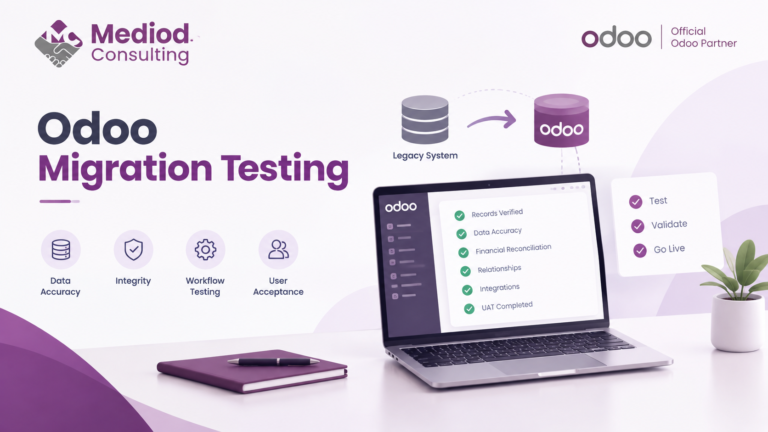
Step 12: Validate Financial Data
Financial validation is one of the most important parts of the project.
Compare QuickBooks and Odoo.
Balance Sheet
Check:
- Assets
- Liabilities
- Equity
Profit and Loss
Check:
- Revenue
- Cost of goods sold
- Operating expenses
- Net profit
Receivables
Compare:
- Customer balances
- Outstanding invoices
Payables
Compare:
- Vendor balances
- Outstanding bills
Bank
Compare:
- Bank balances
- Transactions
The goal should be to make sure the financial position in Odoo matches the agreed migration cut-off from QuickBooks.
Step 13: Test the Odoo Business Workflows
The migration is not finished just because the accounting balances match.
Test the operational workflows.
For example:
Sales
Quotation → Sales Order → Delivery → Invoice → Payment
Purchase
RFQ → Purchase Order → Receipt → Vendor Bill → Payment
Inventory
Receipt → Internal Transfer → Delivery
Manufacturing
Sales Order → Manufacturing Order → Production → Finished Product → Delivery
Testing these workflows ensures that the migrated master data actually works in Odoo.
Step 14: Train Your Employees
QuickBooks users are not automatically Odoo users.
Odoo introduces a broader ERP environment.
Users may need training on:
- Sales
- Purchase
- Inventory
- Accounting
- CRM
- Manufacturing
- Reporting
- Customer management
Accounting users in particular need to understand how Odoo’s accounting workflows differ from QuickBooks.
Training should happen before go-live.
Step 15: Plan the Final Cutover
Once the test migration is validated, plan the production migration.
A typical cutover might look like:
Day 1
Stop new transactions in QuickBooks at the agreed cut-off time.
Day 2
Export final QuickBooks data.
Day 3
Perform final data transformation and import.
Day 4
Validate accounting and operational data.
Day 5
Users begin working in Odoo.
The actual schedule depends on database size and migration complexity.
The important principle is to define a clear cut-off date.
QuickBooks to Odoo Migration Checklist
Use this checklist before going live.
Planning
- Current QuickBooks version identified
- Odoo version selected
- Migration scope defined
- Cut-off date agreed
- Historical data requirements documented
Accounting
- Chart of accounts mapped
- Taxes mapped
- Journals configured
- Bank accounts configured
- Opening balances prepared
- Accounts receivable validated
- Accounts payable validated
- Trial balance reconciled
Master Data
- Customers cleaned
- Vendors cleaned
- Products cleaned
- Duplicate records removed
- Tax information validated
Technical
- QuickBooks backup available
- Odoo backup configured
- Test migration completed
- Data import tested
- Integrations tested
- User permissions tested
Go-Live
- Final QuickBooks export completed
- Final migration completed
- Accounting validated
- Business workflows tested
- Users trained
- Support available
Common QuickBooks to Odoo Migration Mistakes
Migrating Everything Without a Strategy
More historical data does not automatically mean a better migration.
Define what the business actually needs.
Importing the QuickBooks Chart of Accounts Directly
The accounting structure should be designed for Odoo.
Ignoring Data Quality
Duplicate and incorrect records create problems after migration.
Migrating Without Testing
Always perform at least one test migration.
Ignoring Opening Balances
Incorrect opening balances can make Odoo financial reports unreliable.
Forgetting Outstanding Receivables and Payables
Open invoices and bills need to be properly accounted for.
Not Reconciling the Trial Balance
The migration should be financially validated.
Treating Migration as Only an Accounting Project
If Odoo will manage inventory, sales, purchasing, CRM, or manufacturing, those processes also need to be tested.
Going Live Without Training
Users need to understand the new Odoo workflows before the cutover.
Can You Migrate From QuickBooks Online to Odoo?
Yes, businesses can migrate relevant data from QuickBooks Online to Odoo.
The exact migration approach depends on:
- QuickBooks Online configuration
- Required data
- Historical period
- Number of transactions
- Odoo configuration
- Accounting requirements
- Other applications being implemented
For simple migrations, structured exports and Odoo imports may be sufficient.
For larger businesses, custom data transformation and migration scripts may be required.
Can You Migrate From QuickBooks Desktop to Odoo?
Yes, but the approach depends on the QuickBooks Desktop version and the data that needs to be migrated.
A QuickBooks Desktop to Odoo migration should begin with a review of the company file and available export options.
The migration team should then determine how the QuickBooks data maps to Odoo.
How Long Does QuickBooks to Odoo Migration Take?
There is no universal migration timeline.
It depends on:
- Number of transactions
- Number of years of history
- Number of companies
- Number of customers
- Number of products
- Accounting complexity
- Inventory requirements
- Customizations
- Integrations
- Data quality
A small business with clean data may have a relatively straightforward migration.
A larger organization with years of historical transactions, inventory, multiple companies, and integrations will require more preparation and testing.
The best way to estimate the timeline is through a QuickBooks to Odoo migration assessment.
QuickBooks to Odoo Migration for Businesses in the USA
QuickBooks is particularly common among businesses in the United States, making QuickBooks to Odoo migration in the USA an important use case.
US businesses may need to consider:
- Sales tax
- State-specific tax requirements
- Multiple companies
- Multiple warehouses
- Banking integrations
- Payment providers
- eCommerce
- Payroll systems
- Inventory
- Manufacturing
The migration should therefore consider both the accounting data and the broader ERP requirements.
A business moving from QuickBooks to Odoo may be using the migration as an opportunity to replace several disconnected systems with one integrated platform.
QuickBooks to Odoo Migration in Germany
Businesses operating in Germany may also move from QuickBooks or another accounting system to Odoo.
A QuickBooks to Odoo migration in Germany may require additional attention to:
- German accounting localization
- VAT
- DATEV
- SEPA
- Tax configuration
- Chart of accounts
- Financial reporting
- Multi-currency operations
The migration strategy should be designed around the company’s German accounting and reporting requirements.
If DATEV is part of the company’s accounting workflow, it should be tested as part of the Odoo implementation rather than treated as a post-go-live issue.
Why Use an Odoo Migration Consultant?
A QuickBooks to Odoo migration combines accounting, data migration, ERP configuration, and technical implementation.
An experienced Odoo migration consultant can help with:
- Migration planning
- Data analysis
- Chart of accounts mapping
- Data cleaning
- Import templates
- Custom migration scripts
- Accounting configuration
- Opening balances
- Historical data
- Inventory migration
- Integration migration
- Testing
- Reconciliation
- Go-live planning
This is particularly valuable when Odoo will replace QuickBooks as more than just an accounting system.
How Mediod Consulting Can Help
At Mediod Consulting, we help businesses move from legacy accounting and business systems to Odoo.
Our QuickBooks to Odoo migration services can include:
- QuickBooks data assessment
- Migration strategy
- Data cleaning
- Chart of accounts mapping
- Customer and vendor migration
- Product migration
- Invoice and bill migration
- Payment migration
- Opening balance migration
- Historical data migration
- Inventory migration
- Odoo accounting configuration
- Data validation
- Migration rehearsals
- Custom migration development
- Odoo integrations
- User training
- Go-live support
- Post-migration Odoo support
The objective is not simply to move data from QuickBooks into Odoo.
The objective is to create a clean, reliable Odoo database that supports the way your business operates.
Want expert eyes on your migration plan before you touch production data? Talk to Mediod Consulting’s migration team — we’ll review your QuickBooks setup and flag risks before go-live, not after.
Frequently Asked Questions
Can I migrate QuickBooks data to Odoo myself?
For a small and simple database, some data can be exported and imported using standard tools. However, accounting migrations involving historical transactions, opening balances, inventory, or multiple companies should be carefully planned and validated.
What data can be migrated from QuickBooks to Odoo?
Depending on the migration strategy, businesses may migrate customers, vendors, products, accounts, invoices, bills, payments, journal entries, bank transactions, and opening balances.
Should I migrate all historical QuickBooks data?
Not necessarily. The decision depends on reporting, audit, legal, operational, and business requirements.
Can QuickBooks Online be migrated to Odoo?
Yes. Relevant data can be exported from QuickBooks Online and transformed into a format suitable for Odoo.
Can QuickBooks Desktop be migrated to Odoo?
Yes. The process depends on the QuickBooks Desktop version, company file, available exports, and required data.
Will my QuickBooks chart of accounts work in Odoo?
It may be possible to map the accounts, but the QuickBooks chart of accounts should be reviewed and adapted to the Odoo accounting structure rather than imported without analysis.
Can I migrate outstanding invoices and bills?
Yes. Outstanding receivables and payables can be included in the migration strategy and should be reconciled after import.
How do I verify that my QuickBooks to Odoo migration was successful?
Compare the agreed financial cut-off between QuickBooks and Odoo. Validate the trial balance, balance sheet, profit and loss, receivables, payables, bank balances, and other critical business data.
Final Thoughts: Make QuickBooks to Odoo Migration a Structured Project
A successful QuickBooks to Odoo migration is not just a data import.
It is a combination of:
Planning → Data Cleaning → Accounting Mapping → Odoo Configuration → Migration → Testing → Reconciliation → Training → Go-Live
The most important principle is to test before production.
A test migration gives you an opportunity to identify incorrect mappings, missing data, accounting discrepancies, duplicate records, and workflow problems before they affect the business.
Whether you are migrating QuickBooks Online to Odoo, moving from QuickBooks Desktop to Odoo, or replacing QuickBooks with a complete ERP system, careful planning can significantly reduce migration risks.
If you are planning a QuickBooks to Odoo migration in the USA, Germany, or another market, Mediod Consulting can help assess your existing QuickBooks environment, plan the migration, configure Odoo, migrate and validate your data, and support your team through go-live. Email us for a scoped quote.